

Why Your Business Is Missing From Local Search Results
Not showing up on Google? I’d first check whether your business is missing – or just ranking low. Search for your business name plus your city, then your main service plus your city. Check your Google Business Profile and website separately.
Here’s the order I’d follow:
- Profile missing? Check verification, duplicates, and suspensions. Correct your contact details, hours, and categories.
- Website missing? Use Google Search Console to check indexing, crawl blocks, server errors, and duplicate pages.
- Both appear, but service searches fall short? Focus on service details, useful local pages, reviews, and local links. Results also depend on the searcher’s location.
My rule: <u>fix access problems before working on rankings</u>. Google’s verification review can take up to 7 business days. After requesting indexing, wait at least 1 week before rechecking – and remember that a request doesn’t guarantee indexing.
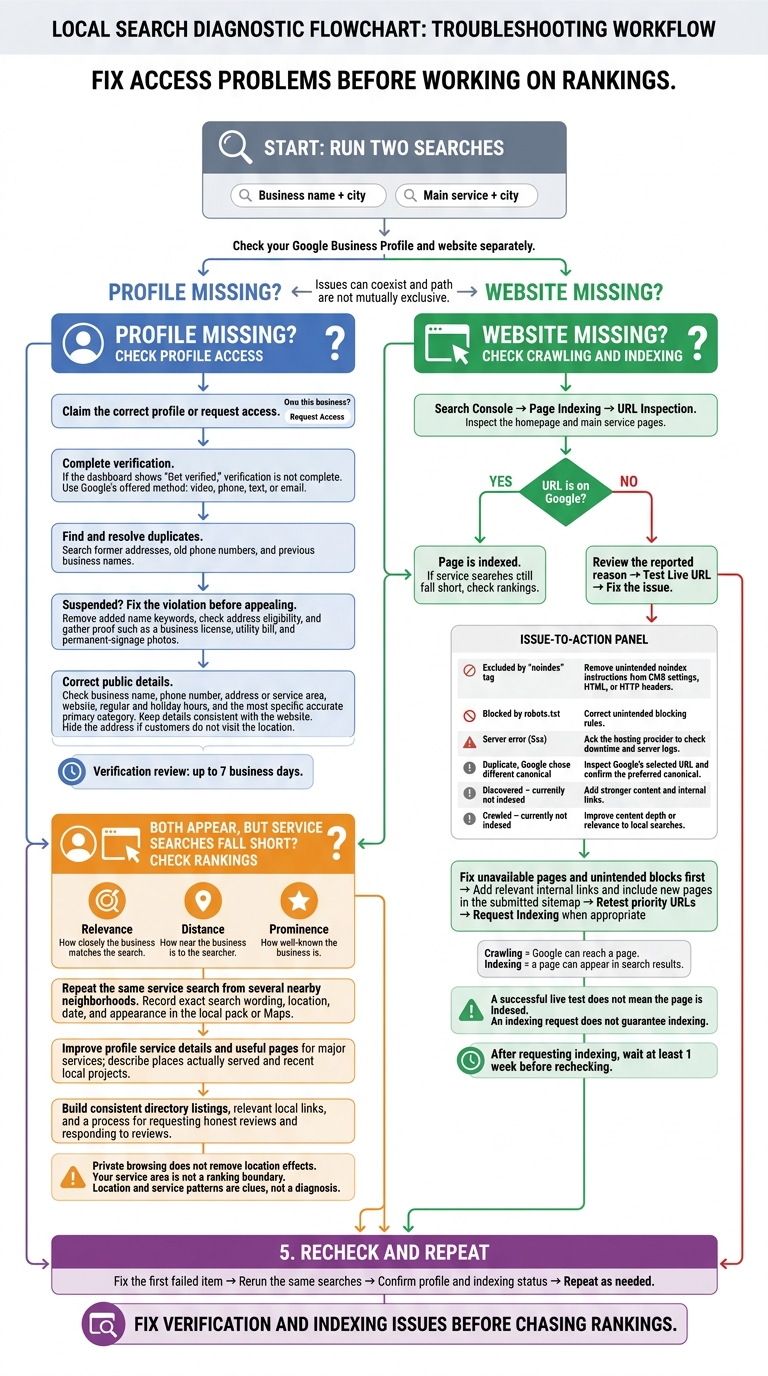
Missing From Local Search? What to Check First
Why Your Local Business Isn’t Showing Up on Google
sbb-itb-303bd8e
Check Your Google Business Profile
If your business appears on Google but local visibility is weak, start with the profile. A missing listing is usually a profile issue, not a search issue.
Claim and Verify the Correct Profile
Search for your business name and city in Google Search or Maps, then click “Own this business?” If someone else manages the profile, click “Request Access” and submit your contact details.
An unverified, duplicate, or suspended profile can prevent your business from appearing in Maps. If your dashboard shows “Get verified”, verification isn’t complete. As the owner or approved manager, use the method Google offers: video, phone, text, or email. Google’s review can take up to seven business days.
Resolve Duplicate Profiles and Suspensions
Search Maps using former addresses, old phone numbers, and previous business names to find duplicate listings. If you find one, use “Suggest an edit” to mark it as a duplicate, or request access if someone else controls it.
If Google suspends your profile, fix the violation before appealing. Remove added keywords from the business name, check that the address is eligible, and gather proof, such as a business license, a utility bill, and photos of permanent signage.
Once the correct profile is active, make sure its public details match your website.
Update Contact Details, Hours, and Categories
Open “Edit profile,” and check that your website, hours, and categories match across your profile and website. Include both regular and holiday hours. Use the business name shown on your signage and website – without added taglines or keywords.
Check these common profile errors:
| Problem | Check and fix |
|---|---|
| Wrong phone number | Enter a local number you control, and use the same number on your website. |
| Old address | Update the existing profile with your current physical location, then check the Maps pin. |
| Missing service area | If customers don’t visit your location, hide your address and list the cities or ZIP codes you serve. |
| Incorrect primary category | Choose the most specific primary category that describes what your business is. Add other categories only for activities your business performs. |
Check Website Access and Indexing
If your profile is correct, check whether Google can reach your website. Your site can still miss local results if Google cannot crawl or index the pages that support it. Start with your homepage and main service pages.
Inspect Your Homepage and Service Pages
In Search Console, open Page Indexing, then check your homepage and main service URLs with URL Inspection. If Search Console says “URL is on Google,” the page is indexed. If that page still doesn’t appear in local service searches, the issue is ranking rather than access.
If a URL is not on Google, review the reported reason and select Test Live URL. A successful live test means Google can reach the page now. It does not mean the page is indexed.
Fix Crawl Blocks and Indexing Issues
Crawling lets Google reach a page. Indexing lets that page appear in search results.
| Search Console finding | Likely cause | Next check |
|---|---|---|
| Excluded by ‘noindex’ tag | A page instruction prevents indexing. | Remove unintended noindex instructions from CMS settings, HTML, or HTTP headers. |
| Blocked by robots.txt | A rule prevents Googlebot from crawling the page. | Review /robots.txt and correct unintended blocking rules. |
| Server error (5xx) | The server was unavailable or timed out. | Ask your hosting provider to check downtime and server logs. |
| Duplicate, Google chose different canonical | Google selected another version of the page. | Inspect Google’s selected URL and confirm your canonical tag points to the preferred version. |
| Discovered – currently not indexed | Google found the page but has not crawled it yet. | Add stronger content and internal links. |
| Crawled – currently not indexed | Google visited the page but has not indexed it. | Add more depth to the content or improve its relevance to local searches. |
Fix unavailable pages and unintended blocks first. For new pages, add relevant internal links and include the pages in your submitted sitemap. Then retest priority URLs and use Request Indexing when appropriate. Wait at least one week before rechecking a newly submitted page.
Check Why Your Business Ranks Lower
If Google can access your profile and website, ranking is usually the next issue to check. When your site is indexed but your business still doesn’t appear in service searches, focus on relevance, distance, and prominence. These describe how closely your business matches the search, how near it is to the searcher, and how well-known it is. Don’t change an accurate category just to chase another search term.
Compare Searches From Nearby Locations
Run the same service search from several nearby neighborhoods. Use a private browser window to reduce personalization based on your browsing history, but remember: private browsing doesn’t remove location effects. Record the exact search wording, location, date, and whether your business appears in Google’s local pack or Maps results.
If your business appears near your location but not across town, distance may be a factor. If it appears for some services but not others, check how clearly your profile describes those services. These patterns are clues, not a diagnosis. Your service area isn’t a ranking boundary.
If the results point to service relevance, start with the details below.
Improve Service Details and Local Prominence
Fill any gaps in your profile’s Services list with clear language your customers use. Give major services their own useful pages on your website, name the cities and neighborhoods you actually serve, and keep details about recent local projects up to date.
Build prominence with consistent directory listings, links from relevant local websites, and a steady process for requesting reviews. Ask for honest reviews and respond to every review. Reviews can help visibility, but strong competition can still limit how often your business appears.
Then run the same searches again to check for changes.
Conclusion: Fix Problems and Recheck Results
After checking your profile, website, and rankings, make one final pass to confirm your fixes worked. Fix verification and indexing issues before chasing rankings. Check that your Google Business Profile is owned, verified, and free of suspension issues.
Make sure your name, address, and phone number match everywhere. Confirm your primary category, then use Search Console to check that key pages are indexable.
Allow up to 7 business days for verification and at least 1 week after submitting sitemap or indexing requests before checking again. Review exact-name search results and indexing status before making more changes.
Go through the checklist again, fix the first failed item, and rerun the same searches.
If exact-name searches work but service searches don’t, the problem is usually ranking – not indexing. Results that vary by location also usually point to ranking rather than a technical problem. Repeat the same searches after each fix.
FAQs
Why did my verified business suddenly disappear from Google Maps?
Your business listing is likely suspended or under review. Keywords in your business name, ineligible addresses such as P.O. boxes, or duplicate listings can lead to suspension. Recent changes to your business name, category, or contact details may also hide your listing temporarily while Google reviews them.
Sign in to your Google Business Profile and check for a suspension notice. Then follow the instructions to appeal or fix the policy violation.
Can I rank locally without a storefront?
Yes. Service-area businesses can rank locally without a public storefront. This includes plumbers, contractors, and mobile service providers who travel to their customers.
Hide your physical address in your Google Business Profile to protect your privacy and follow Google’s guidelines. Then define your service areas, verify your profile, and choose accurate primary categories.
Build local relevance with service-area pages on your website, and keep your contact information consistent across the web.
How can I track local visibility beyond manual searches?
Use position tracking software to monitor how your rankings change across locations and keywords over time. Chrome extensions can also help you audit profiles and track competitors’ rankings for specific searches.
Check your Google Business Profile’s Performance dashboard for search terms, customer engagement, and traffic. Add UTM parameters to the website links in your profile so you can track that traffic in Google Analytics.


