

Small Business Websites: 7 Pages Local Customers Need
I recommend 7 pages that help local customers decide whether to call, book, or buy. Start by putting your service area, tap-to-call number, and one clear next step where mobile visitors can see them without scrolling.
Here’s what each page should answer:
- Home: What do you do, and how can I get started?
- About: Who will I hire?
- Products or Services: What can I buy or book?
- Pricing: What will it cost, and what’s included?
- Reviews or Testimonials: What do past customers say?
- FAQs: What should I know before booking?
- Contact and Location: How can I reach you, and do you serve my area?
My rule: <u>make the details match across every page</u> and your Google Business Profile. Keep prices, hours, service boundaries, and policies current. Then test the full contact path on your phone – because clear information won’t help if the booking button doesn’t work.
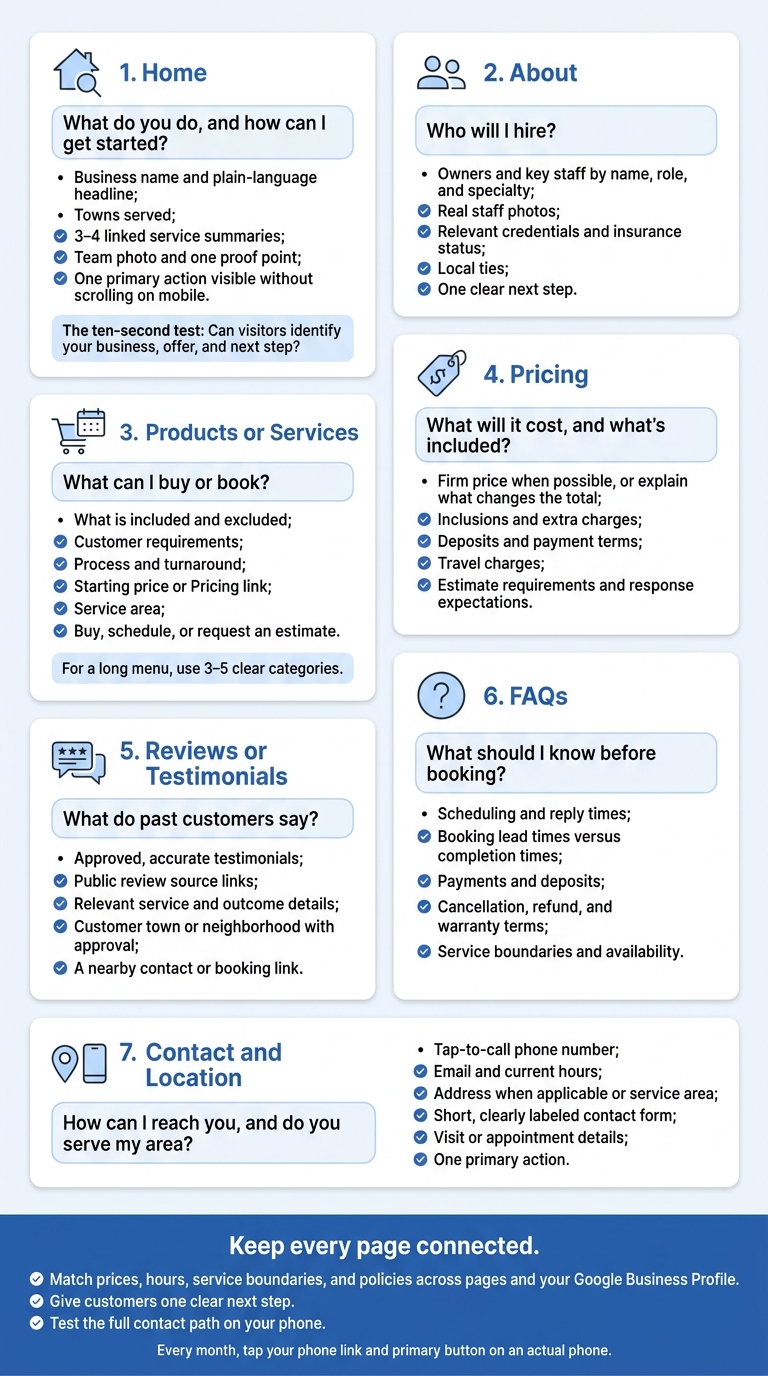
7 Essential Pages for a Small Business Website
1. Home
Your Home page should cover the basics fast.
Customer Question Answered
Use the ten-second test: can a first-time visitor tell what your business is, what you offer, and what to do next within ten seconds? Point visitors toward the details they need instead of explaining everything on one page.
What to Include
Place your business name, a plain-language headline, and one sentence about how customers gain from your service near the top. Follow with 3–4 short service summaries, each linked to its service page. Include a team photo and one proof point, such as years in business, review count, or credentials.
Local Details and Next Step
Keep the top section short enough that mobile visitors can see your primary button without scrolling. Name the towns you serve rather than using a vague regional label. Make one action stand out, and skip large sliders and autoplay video that push it aside or slow the page.
What to Check
Every month, tap your phone link and primary button on an actual phone. Broken links stop calls, bookings, and inquiries. Make sure calls reach the correct number and booking or inquiry links open as expected.
Check service-page links quarterly, and test using cellular data – not just office Wi-Fi. Keep your local details consistent with your Google Business Profile, and update both whenever those details change.
sbb-itb-303bd8e
2. About
Once visitors know what you do, show them who they’ll hire.
Customer Question Answered
Help visitors understand who runs the business and why they can trust the people who will show up.
What to Include
Introduce owners and key staff by name, role, and specialty. Share relevant licenses, certifications, professional memberships, and insurance status. Where available, link to state licensing records so customers can check your credentials.
Use real photos of your staff and workspace. Keep your origin story to one short paragraph, then explain your service standards in plain language. Mention a background-check policy only if it matches your hiring practices.
Local Details and Next Step
Describe your community ties and history in the area. Give readers one clear next step, such as Request a Quote or Book an Appointment, then direct them to the service page that fits their needs.
What to Check
Review team details quarterly and remove departed staff promptly. Check experience claims, credentials, and insurance wording against current records. Only promise standards such as same-day service if you can consistently meet them, and make sure credential links still work.
3. Products or Services
Once visitors know who you are, show them what they can buy or book.
Customer Question Answered
Help visitors see whether your offer fits their needs. Explain what you provide, who it’s for, and what result they can expect. Use service names customers recognize instead of technical labels.
What to Include
Spell out what’s included, what’s not, and what customers need to provide before work begins. Walk them through the process and expected turnaround. Give a starting price or link to the Pricing page for full rates.
If you have a long menu, group it into 3–5 clear categories. Give an offering its own service page only when it needs separate scope, requirements, or timing details. Use photos of actual work that match the offer.
Local Details and Next Step
List the towns, neighborhoods, counties, or ZIP codes you serve, along with any coverage limits. Match your call to action to the offer: buy, schedule, or request an estimate. Ask only for the details needed to handle the request, and tell customers when to expect a response.
What to Check
Check descriptions, availability, and turnaround times whenever an offering changes. Test purchase, booking, and estimate paths on phones and computers. Make sure requests reach your team and customers know what happens next.
4. Pricing
Customer Question Answered
Once visitors understand your offer, they need to know what it costs. Publish a firm price when possible. If the price varies, explain what affects the total.
What to Include
Choose the pricing format that matches how you charge.
Pricing format Illustrative amount What to explain Fixed price $75 service call What the visit covers and whether repairs cost extra Starting price From $1,200 What the base service includes and what changes the total Range $2,500–$4,000 How project size, materials, and labor affect the total
For packages, spell out what’s included and any limits. For hourly rates, state the billing unit and minimum charge, if any.
Show labor, parts, permits, disposal, and taxes separately so customers can see what’s included and what costs extra. Explain deposits and when payments are due. If you accept payments online, link to your cancellation and refund terms.
Local Details and Next Step
State any travel charges and where they apply. Explain whether estimates are free or paid and whether you credit a paid estimate toward the final bill. Also clarify whether you need photos, video, or an in-person inspection to provide pricing.
Next to Request a Quote, tell customers the minimum details to send and when to expect a response or estimate.
What to Check
Whenever rates change, review prices, package limits, fees, and payment terms. Make sure advertised starting prices still match a service customers can book, and check that booking and payment screens show the same charges. Keep travel boundaries and linked policies up to date.
With pricing clear, visitors usually want to hear from other customers.
5. Reviews or Testimonials
Customer Question Answered
Once pricing is clear, reviews answer the next question: Can this business deliver? Detailed reviews show customers what to expect. Comments about reliability, workmanship, communication, turnaround, or value give local customers examples of your results and follow-through.
What to Include
Get permission before publishing a testimonial, name, photo, or logo. Check that each quote matches the service and outcome. Link to the source of public reviews, and use only approved before-and-after photos.
Keep a private record of each review and its permission. Never invent reviews, offer rewards for positive feedback, or hide employee or family ties.
Local Details and Next Step
With approval, include the customer’s town or neighborhood. Put each testimonial on the matching service page, with a contact or booking link beside it so visitors can take the next step without searching.
What to Check
Every few months, check permissions, identifying details, and source links again. Add new testimonials that reflect your current services, and test how they display on mobile. Check your contact links and forms there, too.
6. FAQs Page
Once visitors trust your work, answer the policy questions that might still keep them from booking.
Customer Question Answered
Use your FAQs page to address what customers need to know before booking: who qualifies, when work can start, what they need to pay, and how to change plans. Pull questions from customer calls and emails. Give direct answers, organized around the decisions customers need to make.
What to Include
Group answers under scheduling, payments, and service policies. Explain how booking confirmations work, how soon you’ll reply, and what customers must provide before work starts. Separate booking lead times from completion times so customers know both when you can start and how long the work will take.
State accepted payment methods, deposit requirements, cancellation deadlines, and refund terms. Explain what your warranty covers and how long it lasts. For estimates, specify the details you need and when customers can expect a response. Only promise timelines and terms you can meet. Then explain the limits that affect local bookings.
Local Details and Next Step
Briefly list the towns or ZIP codes you serve, any travel fees, and services you don’t offer. Make emergency, evening, and weekend availability clear. Link each answer to the right next step: Pricing, Products or Services, or Contact and Location.
What to Check
Update answers whenever policies, prices, or service boundaries change. Check cancellation terms, warranty details, and reply times against your booking forms and other pages so customers get the same instructions everywhere.
7. Contact and Location
Once visitors review your services, pricing, and proof, give them a clear way to reach you.
Customer Question Answered
Tell customers how to contact you and whether they can visit. Explain whether you serve them at your location, travel to them, work remotely, or require an appointment.
What to Include
Display your business name, physical address when applicable, email address on your business domain, and current hours. Make your phone number a tap-to-call link using tel:.
Keep the contact form short, with fields for name, email, phone number, and message. Give each field a visible label and use large, touch-friendly inputs.
Local Details and Next Step
If customers visit you, include directions, parking information, accessibility details, and a map. If you travel to customers or work remotely, list your service area instead of a private home address, including on Google Business Profile.
Clearly state if visits are by appointment only. Choose one primary action, such as Book Now or Request a Quote.
What to Check
Check that your contact details, service areas, and holiday hours match Google Business Profile and key listings. Test the phone link and form on a smartphone using cellular data. Then test keyboard navigation to confirm people can move through and use the contact options without a mouse.
Repeat these checks whenever your hours, service area, or contact methods change.
Conclusion: Check Your 7 Website Pages
Use this final check: Can customers find all seven pages without guessing where to click? Review the pages together to spot conflicting details. They should form a clear path to contact.
Make sure hours, service area, pricing, proof, and next steps match across pages. Each page should guide customers to the next action. Test the full contact path on mobile, too.
Fix outdated hours, unclear service boundaries, and missing next steps before design tweaks. These issues affect customers most.
Assign one person to review every affected page whenever hours, service areas, or contact details change.


